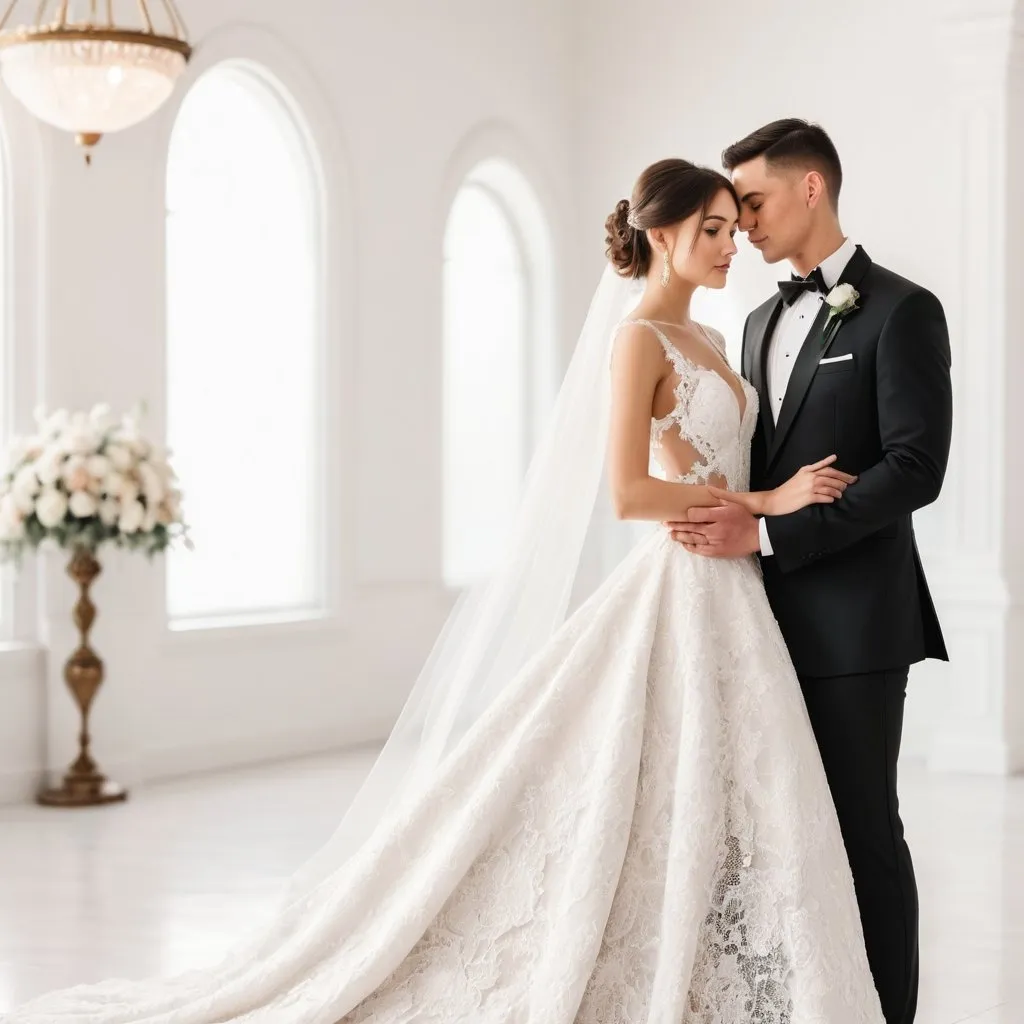
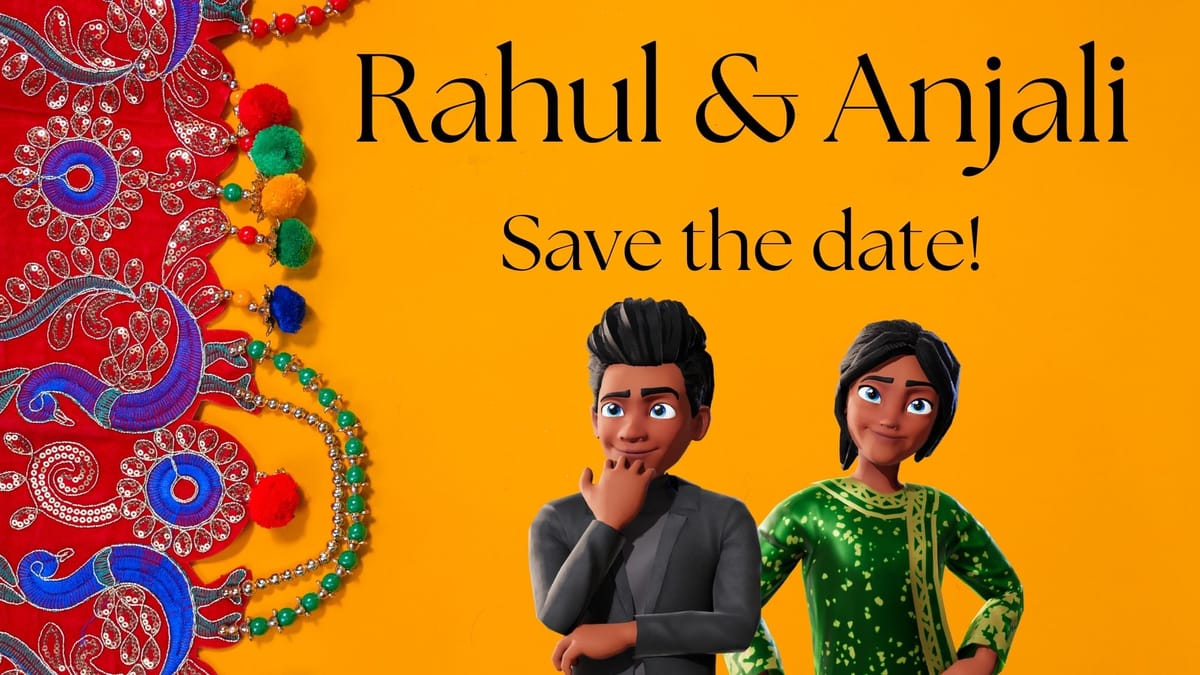
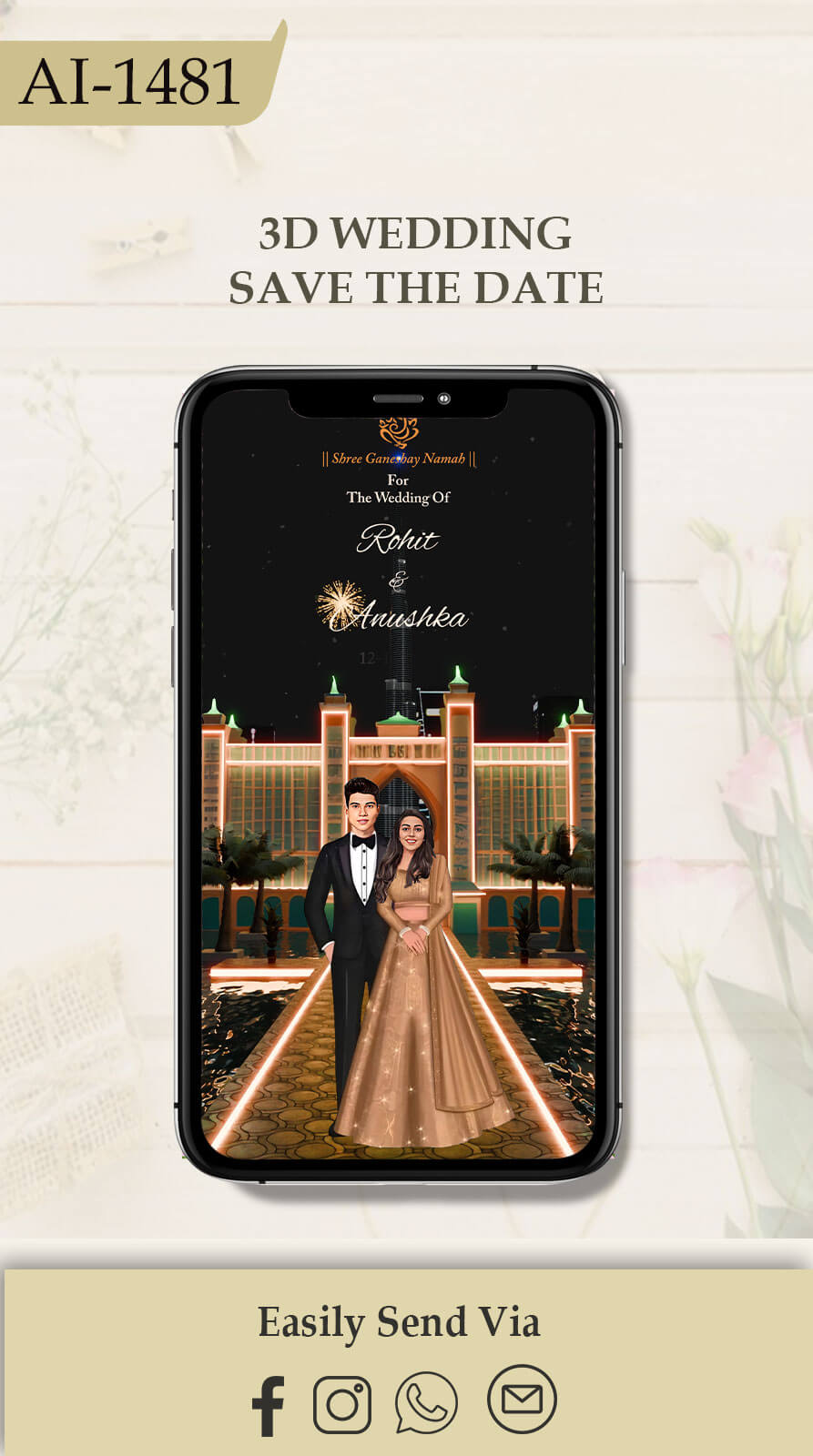

Wedding invitations have evolved far beyond simple text cards or static Canva designs. Today, AI-powered 3D wedding video invitations allow couples to see themselves inside cinematic wedding scenes—without expensive shoots, studios, or travel.
In this blog, you’ll learn how to create professional-quality 3D wedding video invitations in minutes using AI, even if you have zero design or editing experience.
Why AI Wedding Invitations Are Special
Traditional invitations are easy to make—but they lack emotion and realism. AI-generated invitations stand out because:
- You appear inside the invitation
- No real photoshoot or location booking is required
- Multiple functions (Haldi, Mehendi, Sangeet, Engagement) can be created easily
- Cost-effective and extremely fast
Reality Check:
AI face matching is not 100% perfect in motion. While images can match very closely, videos may show 5–10% variation, which is completely normal with current AI technology.
Step 1: Decide the Wedding Function & Pose
Before generating anything, decide:
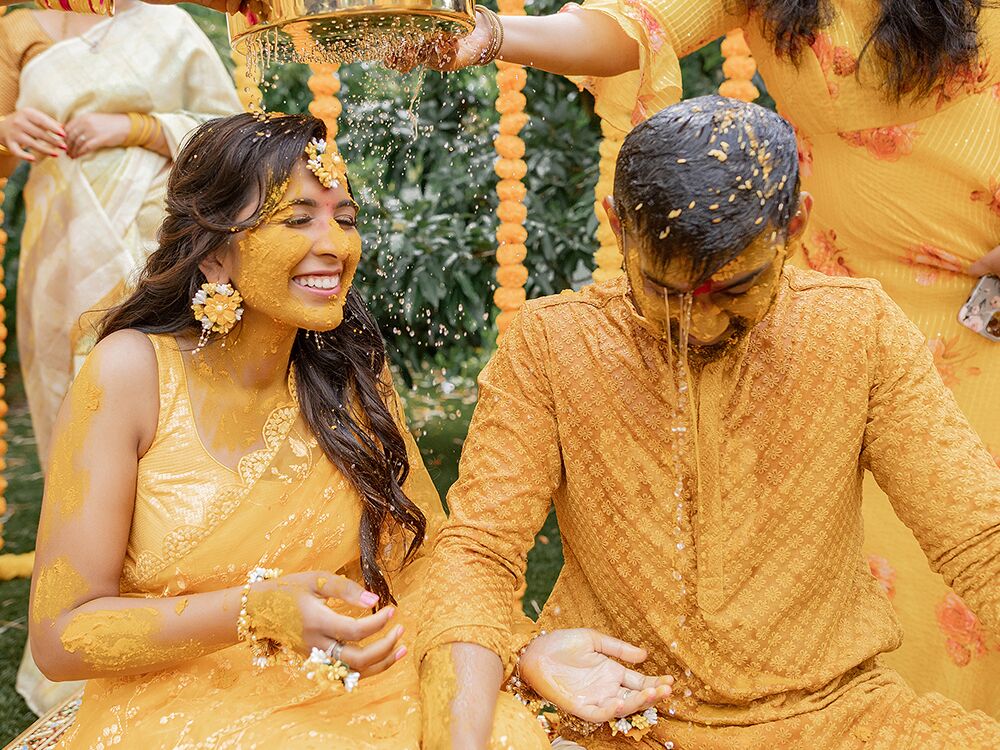
- Which function you are creating (Haldi, Mehendi, Sangeet, etc.)
- Couple pose or single portrait
- Outfit style and mood
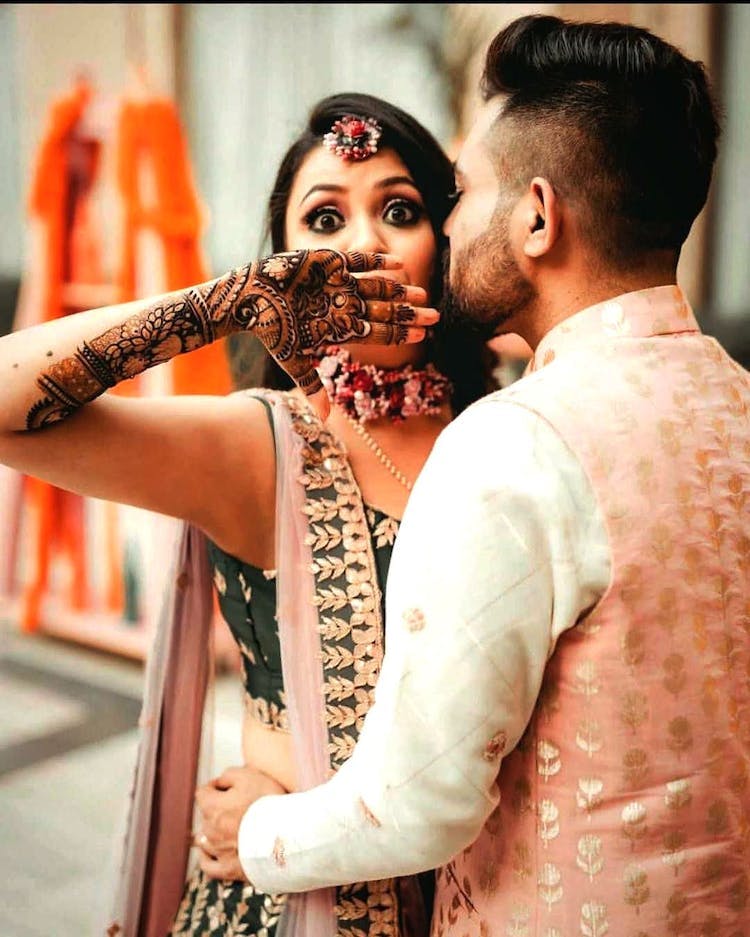
You can search for wedding invitation couple poses and select a reference image that matches your vision.
Step 2: Generate a Base Wedding Image Prompt

4
Upload your selected reference image and generate a detailed AI prompt that includes:
- Facial expressions
- Outfits
- Background
- Lighting
- Camera angle
- Pose
This prompt will become the foundation of your realistic wedding invitation.
Step 3: Add Your Face Using AI
Now upload:
- Bride’s clear front-face photo
- Groom’s clear front-face photo
In the prompt, explicitly mention:
“Exact same facial details as reference image”
This instruction helps AI retain facial similarity as much as possible.
📌 Tip:
Use clear, well-lit, front-facing photos for better face matching.
Step 4: Create a Custom Background (Without Editing)


4
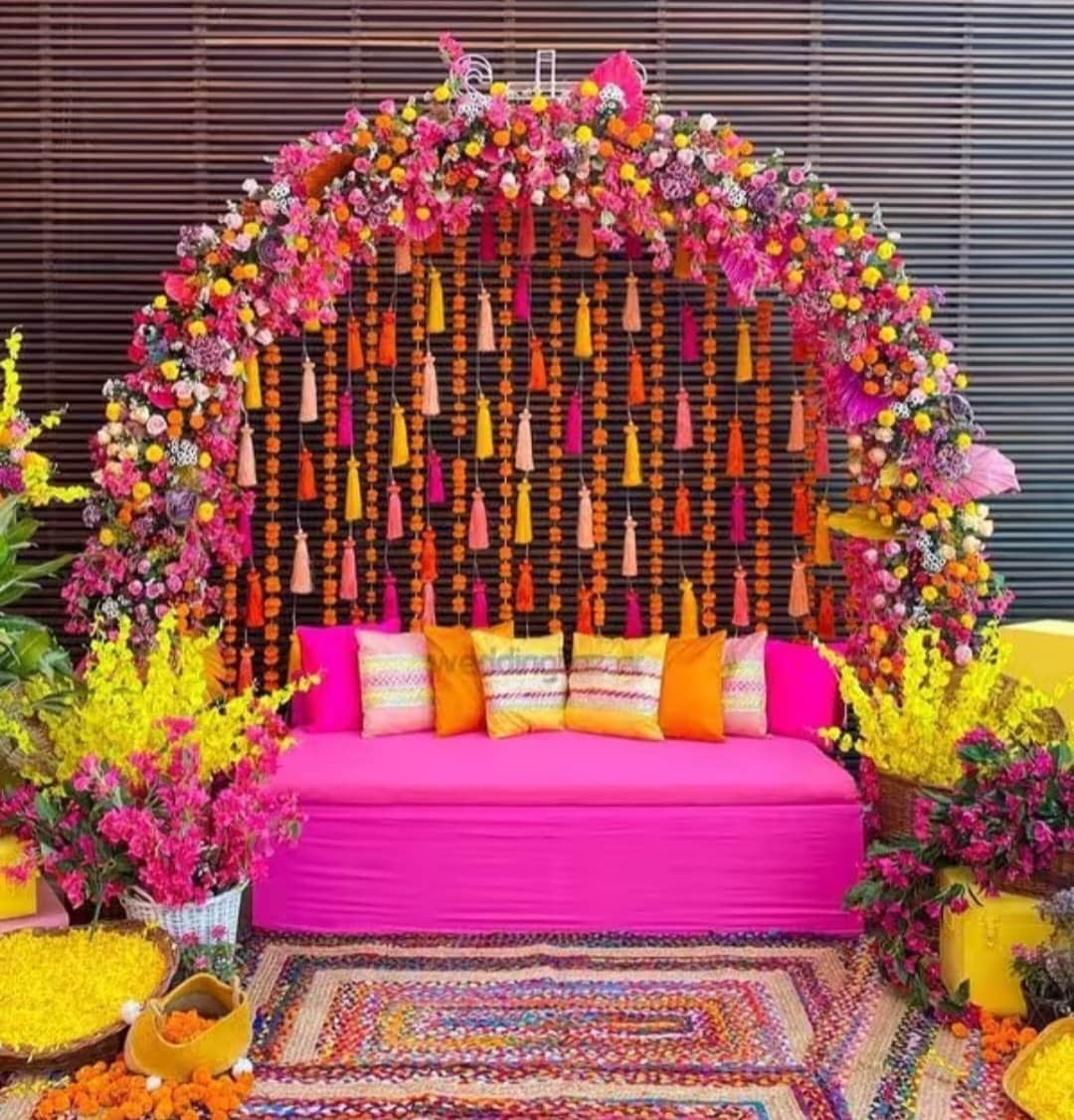
Instead of manually editing backgrounds:
- Upload a background image
- Ask AI to generate a detailed prompt
- Mention unwanted objects (sofa, table, props) to be removed in the prompt itself
This way, the final image is already clean—no Photoshop needed.
Step 5: Add a Decorative Text Board
Create a horizontal or vertical text board using AI with details like:
- Function name (Haldi Ceremony)
- Date & time
- Decorative Indian elements
- Floral or royal style
Example text:
Haldi Ceremony – 23 November | 5:00 AM
You can regenerate multiple styles until you’re satisfied.
Step 6: Assemble Everything in Canva
Now combine:
- Background image
- Couple image (background removed)
- Text board
Use Canva to:
- Remove backgrounds
- Adjust size and alignment
- Export high-quality JPG or PNG
Within minutes, your final static wedding invitation is ready.
Step 7: Convert the Image into a 3D Video
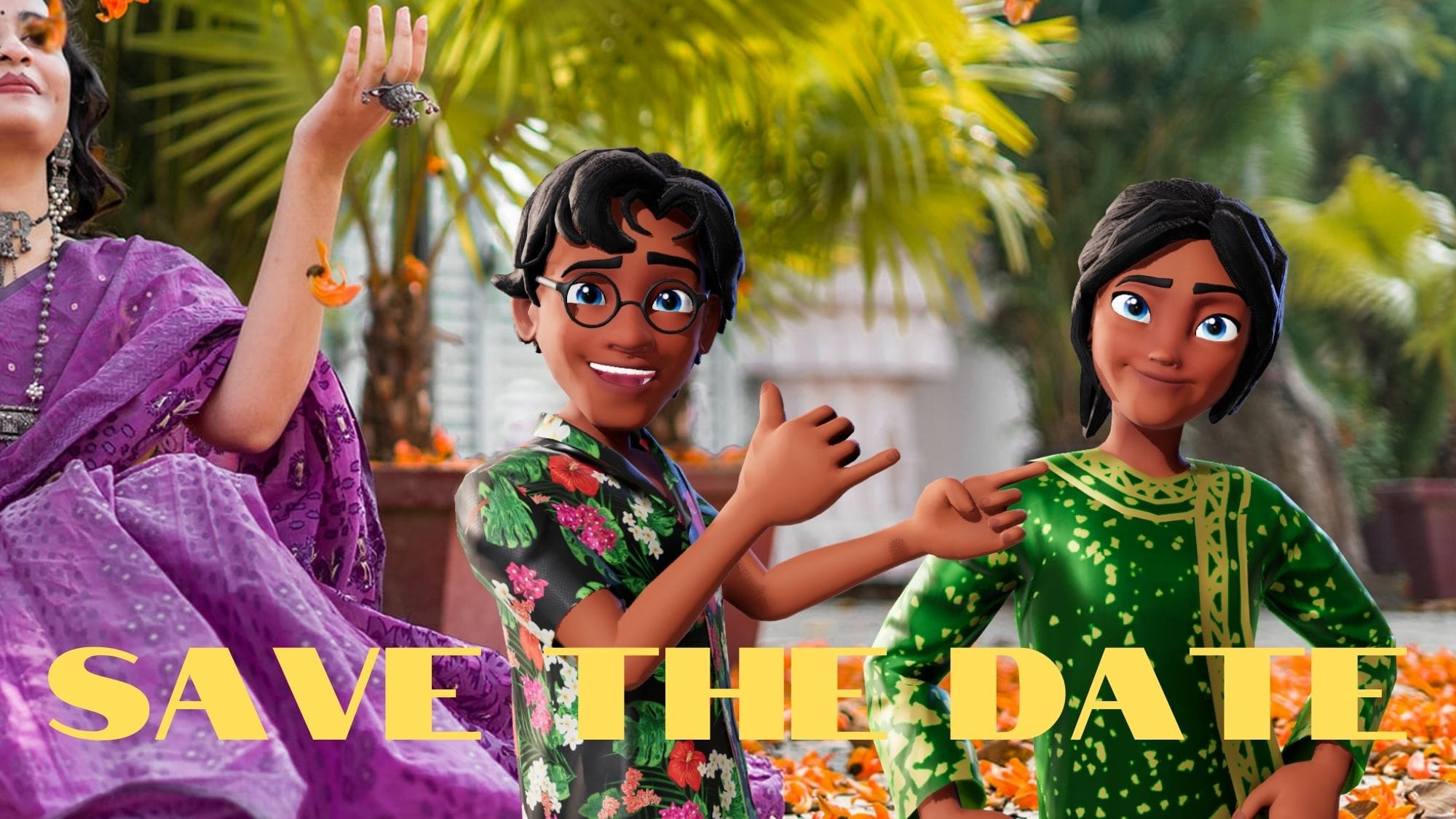
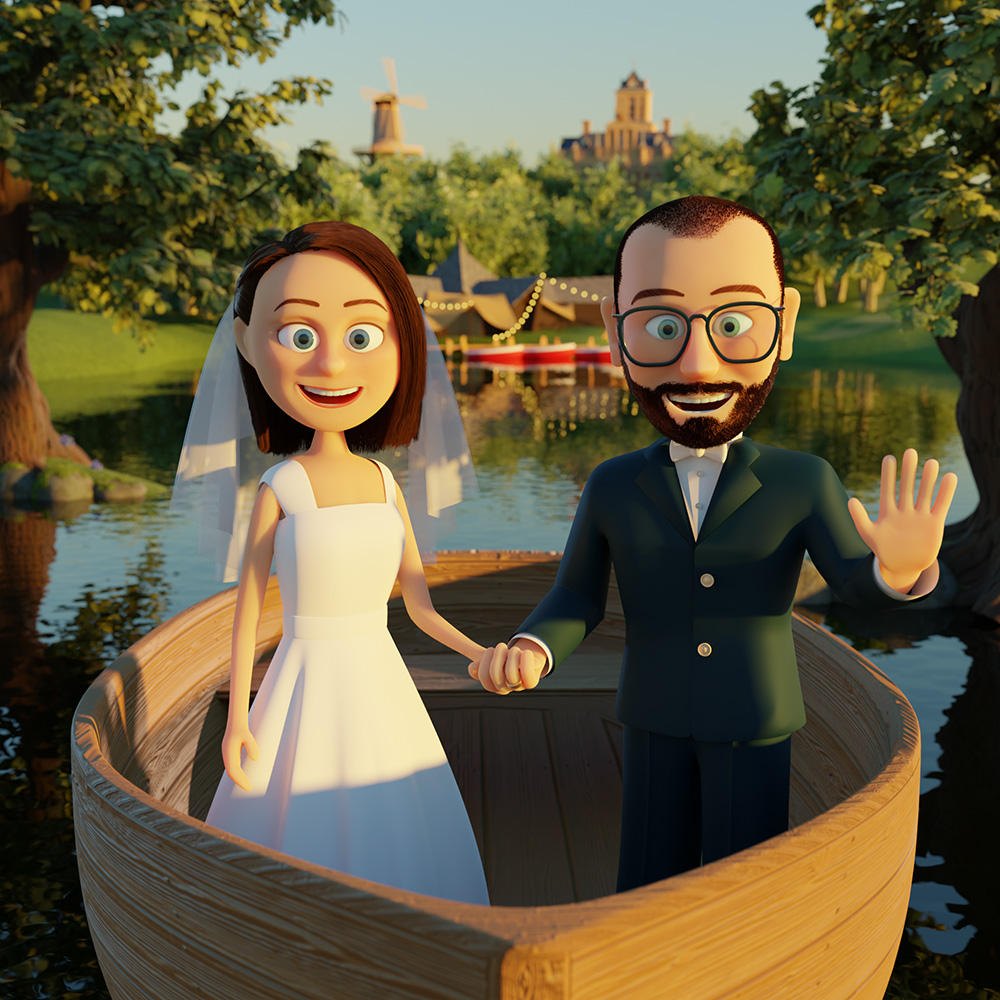
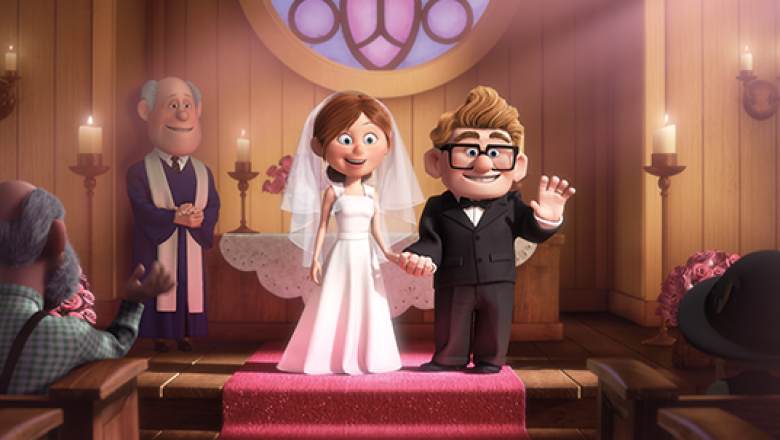
To add motion:
- Upload the final image
- Generate a motion prompt describing:
- Cute couple gestures
- Eye contact and smiling
- Soft camera movement
- Animate using Kling AI
🎥 Best Practice:
Use front-face images only for animation to minimize face distortion.
Step 8: Create Videos for All Wedding Functions
Repeat the same process for:
- Engagement
- Haldi
- Mehendi
- Sangeet
- Wedding Ceremony
Combine all clips in a video editor, add music and transitions—and your complete cinematic wedding invitation video is ready.
Tools Used in This Workflow
- Google AI Studio – Image generation
- Canva – Layout & design
- Kling AI – Motion & animation
Final Thoughts
AI has completely transformed wedding invitations. What once required:
- Expensive shoots
- Designers
- Editors
…can now be done in minutes, at a fraction of the cost, with stunning results.
If you want modern, emotional, and cinematic wedding invitations, AI-powered 3D video invitations are the future.