
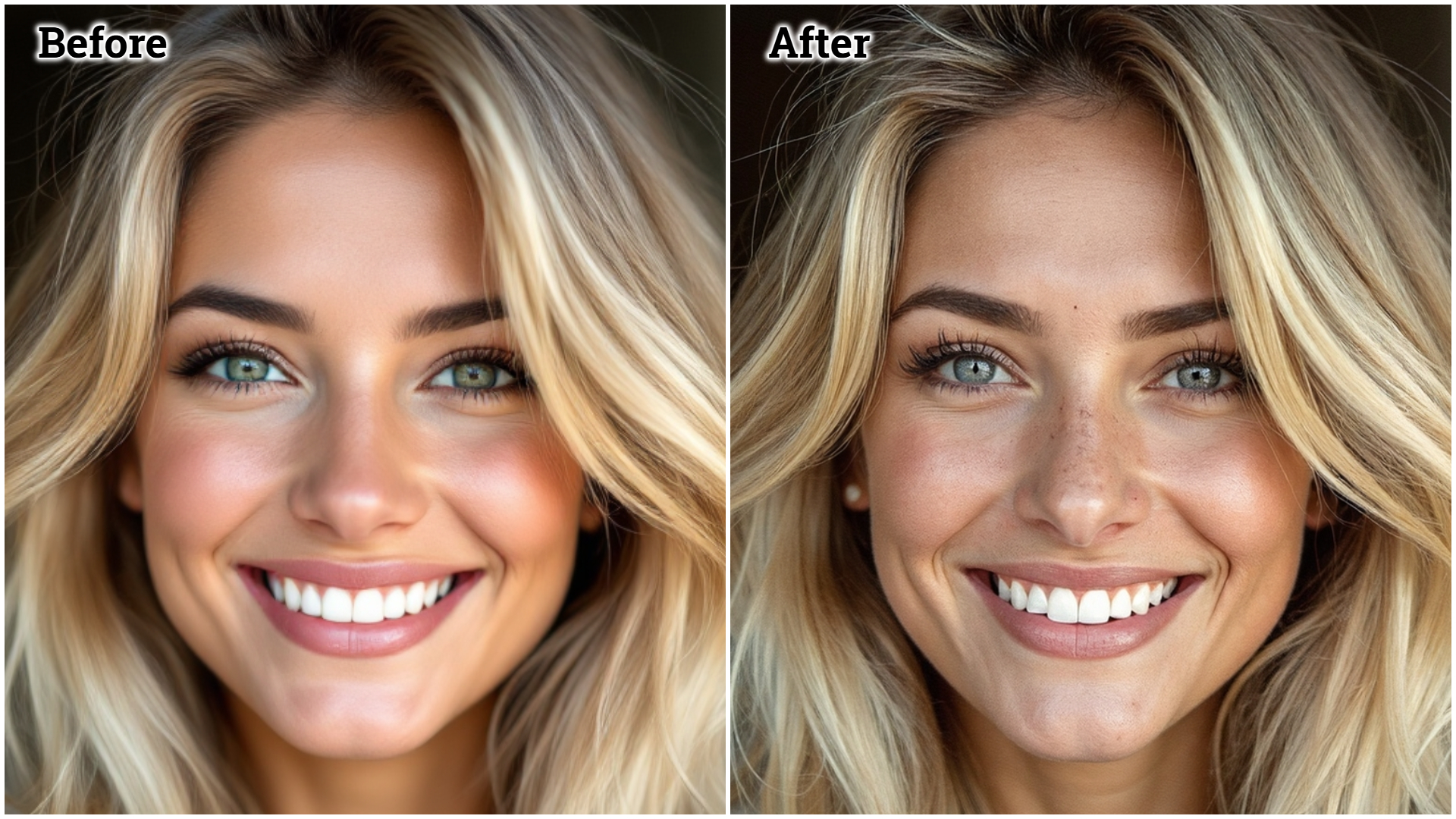

Have you ever seen an AI image and instantly thought,
“Yep… this is fake”?
That reaction usually happens within 2 seconds, and the reason is simple:
❌ Plastic skin texture
The Real Problem With AI Faces
Most AI tools over-smooth:
- Skin pores disappear
- Texture becomes glossy
- Faces look airbrushed and artificial
Even high-end AI fails unless you force realism through prompts.
The Fix: One Line That Changes Everything
When writing your prompt, you MUST add:
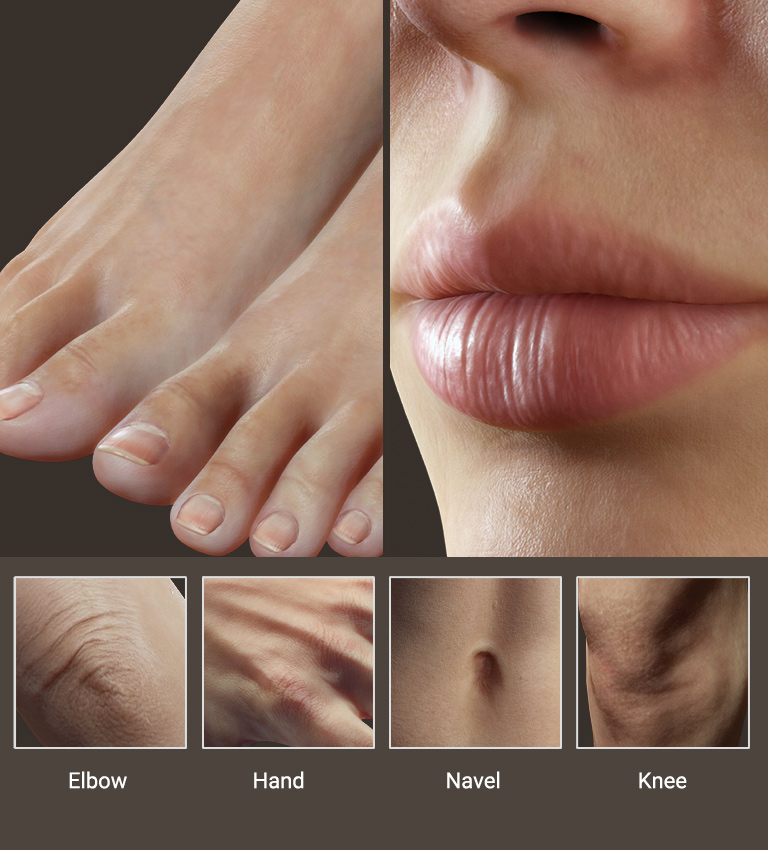
“Real human skin texture with visible pores, natural imperfections, no plastic or artificial skin”
This single instruction tells the AI:
- Don’t over-smooth
- Keep micro-details
- Maintain realistic lighting interaction
Step-by-Step Workflow
- Take a reference image
- Upload it to ChatGPT
- Ask for a fully detailed prompt
- Mention explicitly:
- Same pose
- Same lighting
- Same outfit
- No reference image will be uploaded again
Then generate the image using Google Gemini (Pro Mode).
Result You’ll Get
✔ High-resolution output
✔ Real human-like skin
✔ Natural shadows and highlights
✔ No AI “shine” on the face
To see this method in action, watch the full tutorial here:
👉 https://www.youtube.com/watch?v=QFYXNWYJetw
Best Use Cases
- Instagram creators
- Fashion & beauty brands
- AI influencers
- Personal branding photos
Once you fix skin texture, your AI images stop looking like AI.