
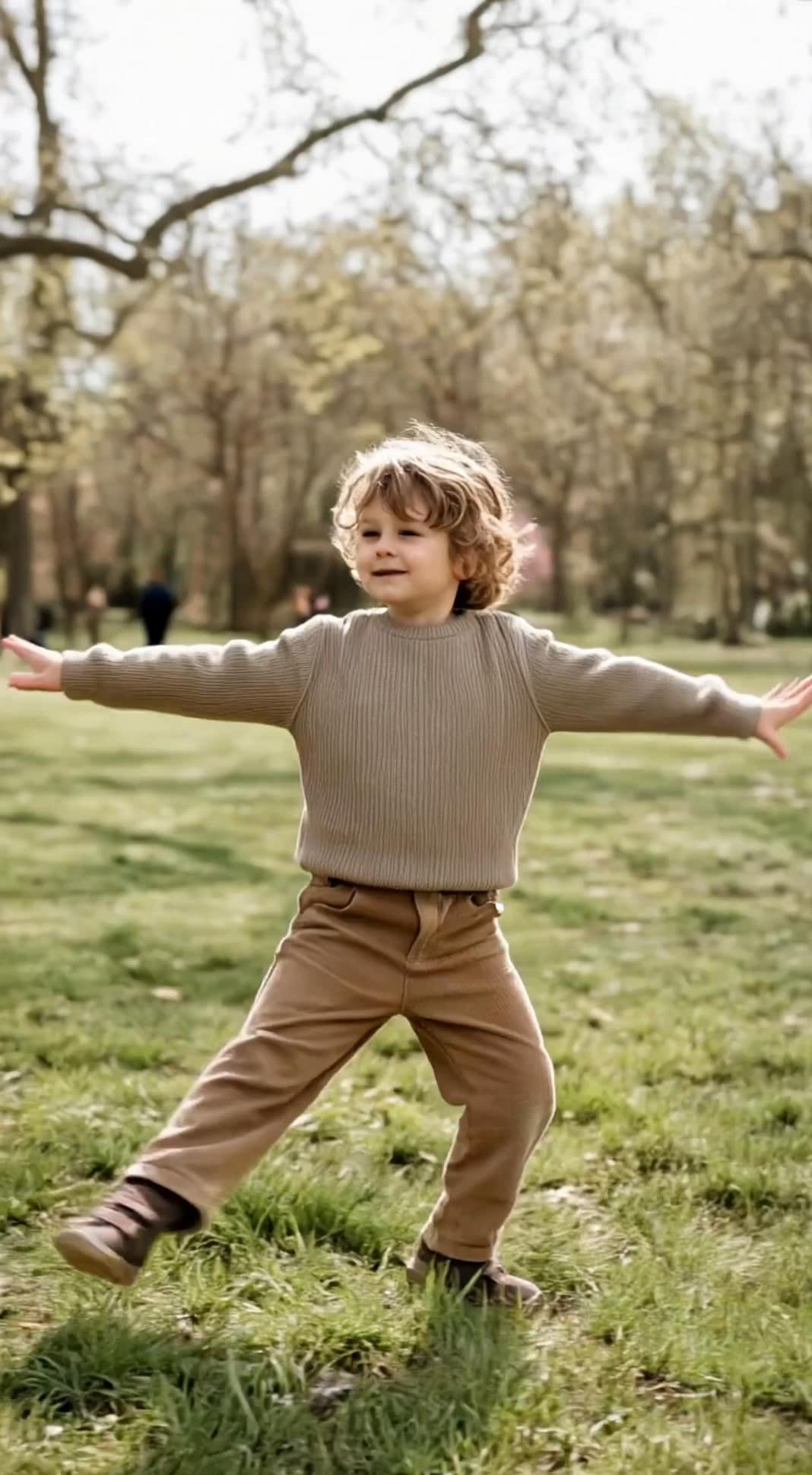

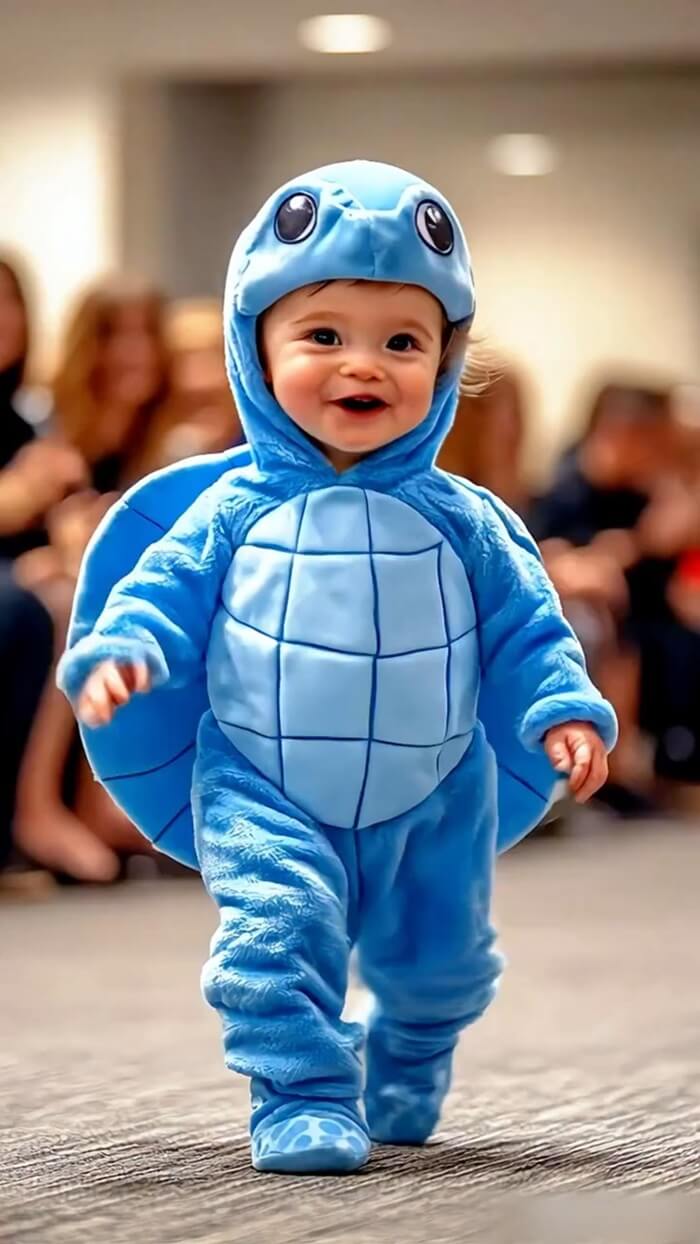
AI baby dance videos are going viral across Instagram Reels and YouTube Shorts. These videos look cute, professional, and eye-catching — and the best part is, you don’t need a real baby, camera, or studio.
In this guide, you’ll learn how to create baby dance videos using AI tools in just a few minutes.
Step 1: Choose a Clear Outfit or Character Image


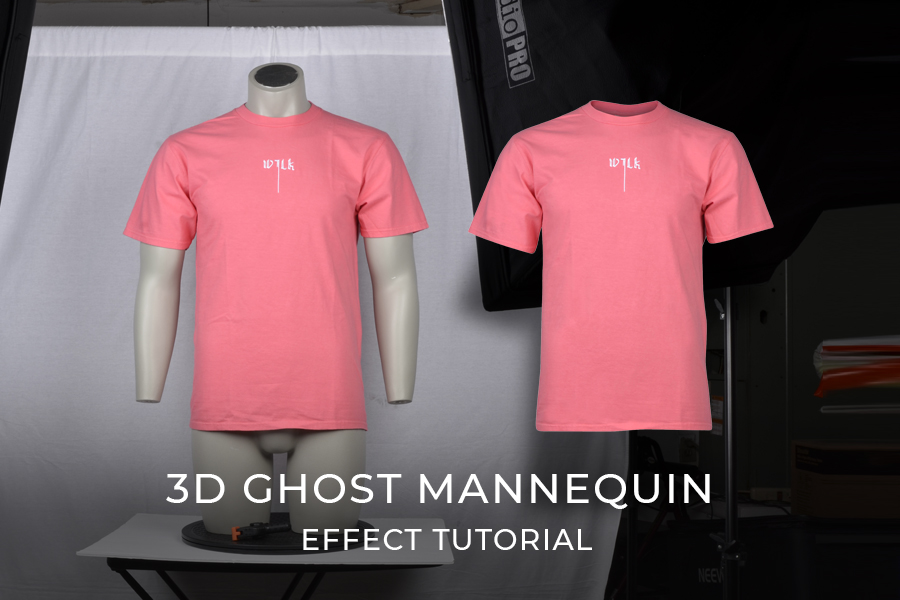
Start with a high-quality image.
Image must have:
- Clear outfit visibility
- Front-facing angle
- Proper lighting
- Accessories clearly visible
📌 Why this matters:
AI analyzes this image to design the baby character accurately.
Step 2: Convert Outfit into a 3D Baby Character
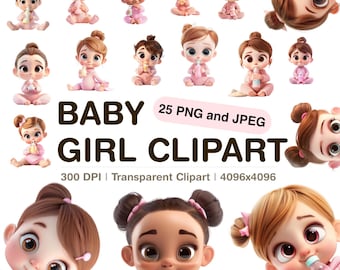
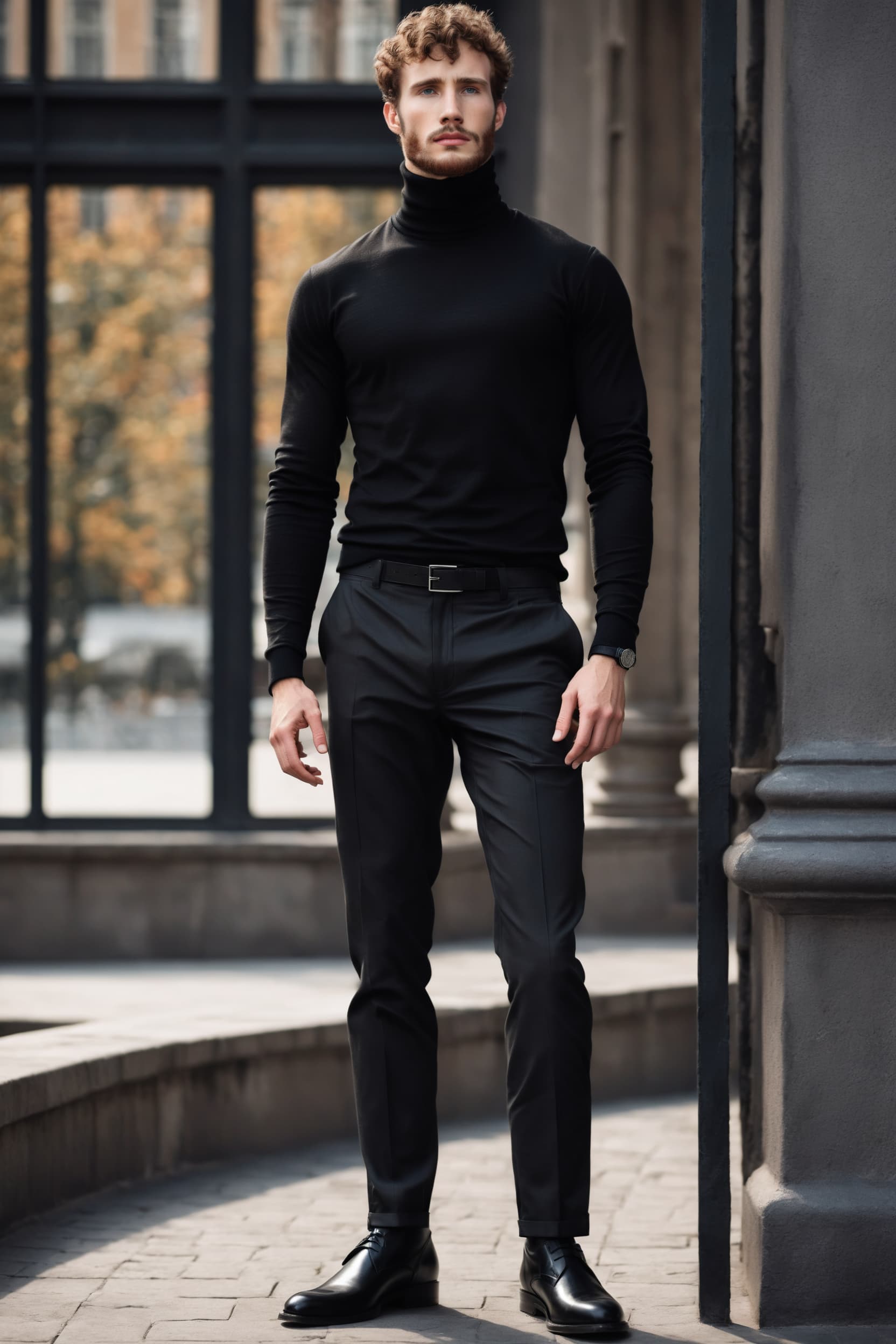
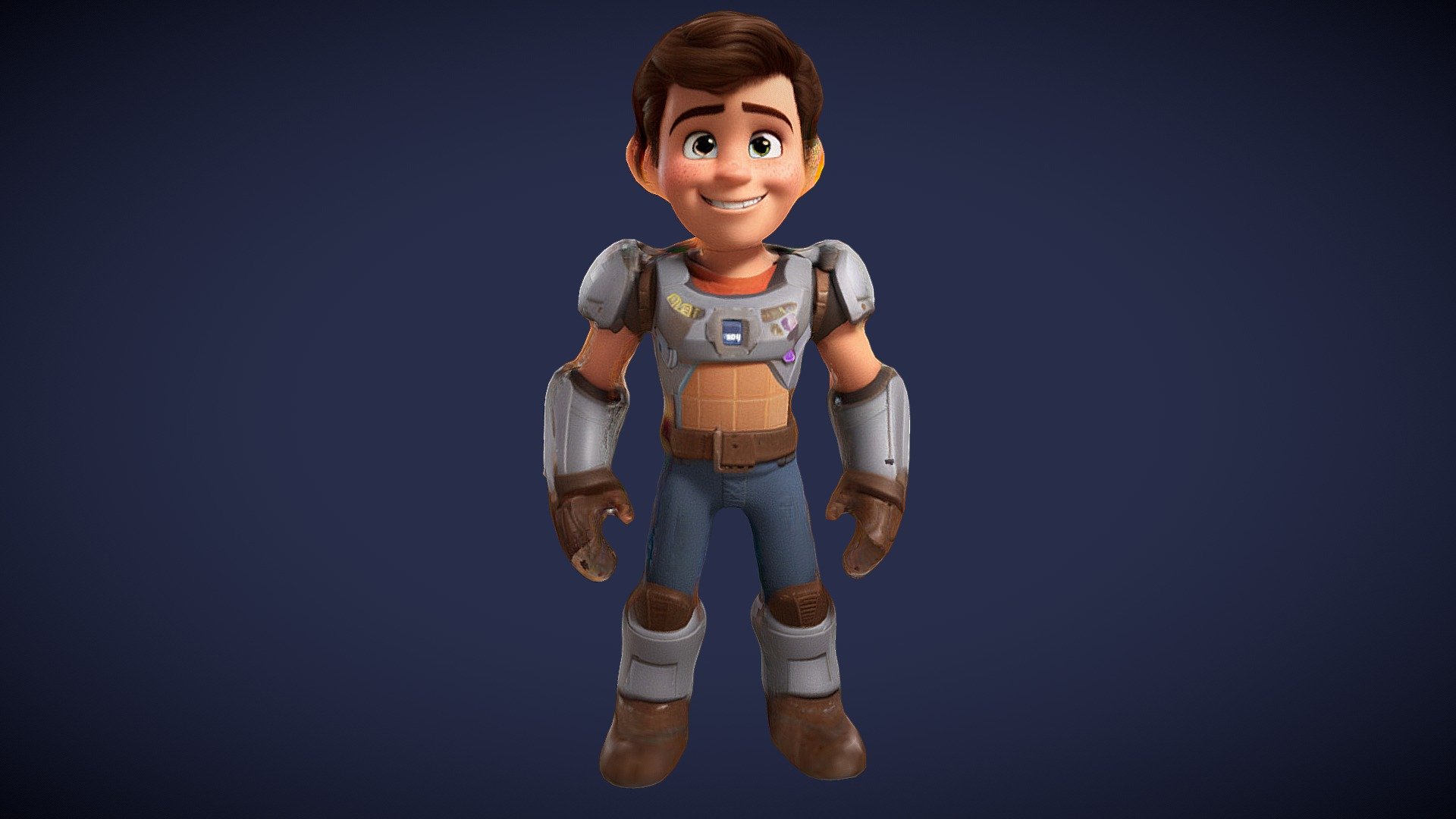
Upload your image into Google Gemini and give a short instruction.
Sample Instruction:
Create a cute 3D Pixar-style baby character wearing this exact outfit and accessories. Soft lighting, standing pose, high-quality details, vertical 9:16 format.
✨ Result:
- A cute baby-style AI model
- Perfect outfit matching
- Ready for animation
You can edit:
- Hair color
- Face expression
- Skin tone
Step 3: Animate the Baby Using AI Dance Motion
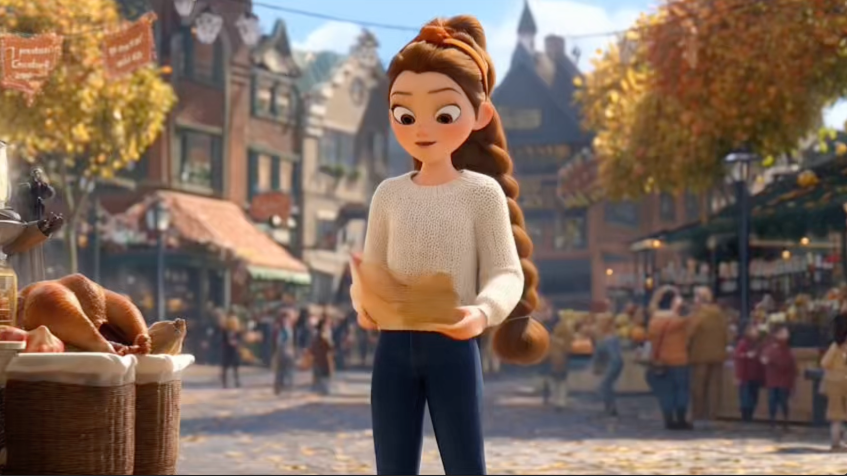

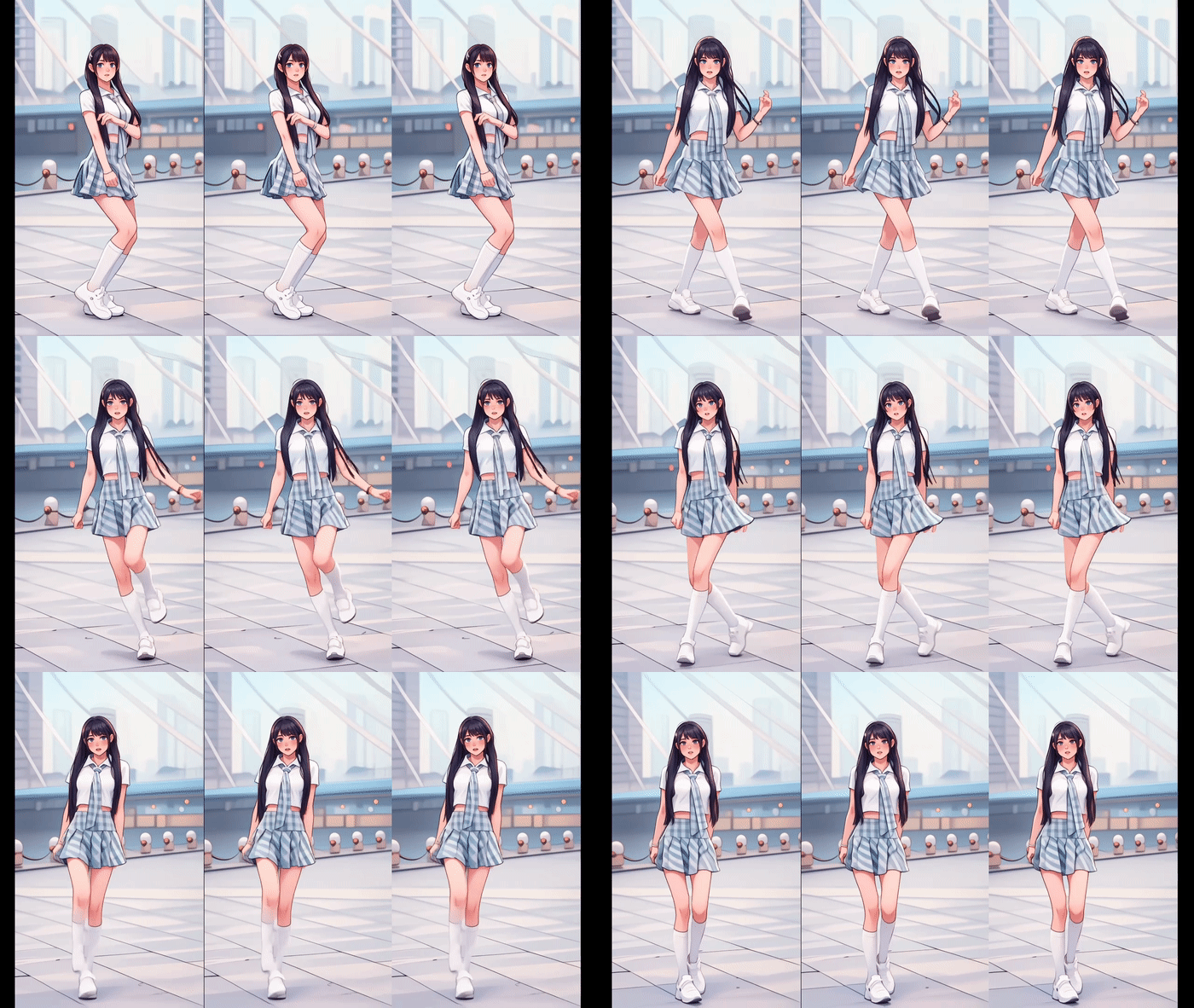
Now bring the character to life.
Process:
- Open Kling AI
- Select Image to Video
- Upload:
- Baby character image
- Dance reference video
⚠️ Important Rule:
- If baby legs are visible → reference video must show leg movements clearly
This avoids shaky or broken dance motion.
Step 4: Fix Face Cut or Framing Problems

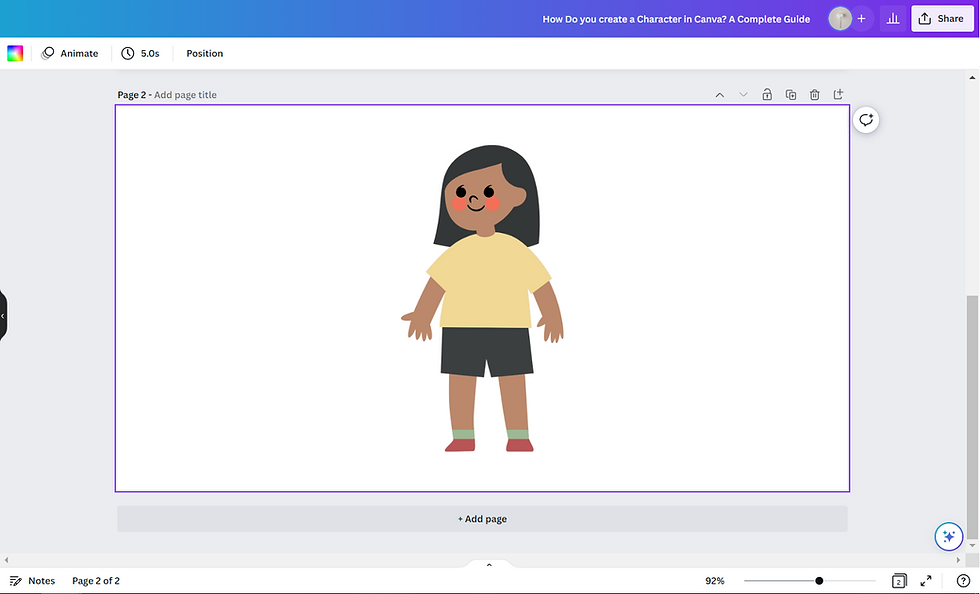
Sometimes AI crops the face or head.
Simple Canva Solution:
- Remove background
- Place character on a new background
- Adjust height & position
- Download corrected image
🎯 This ensures professional framing in videos.
Step 5: Reduce AI Credit Usage (Smart Trick)
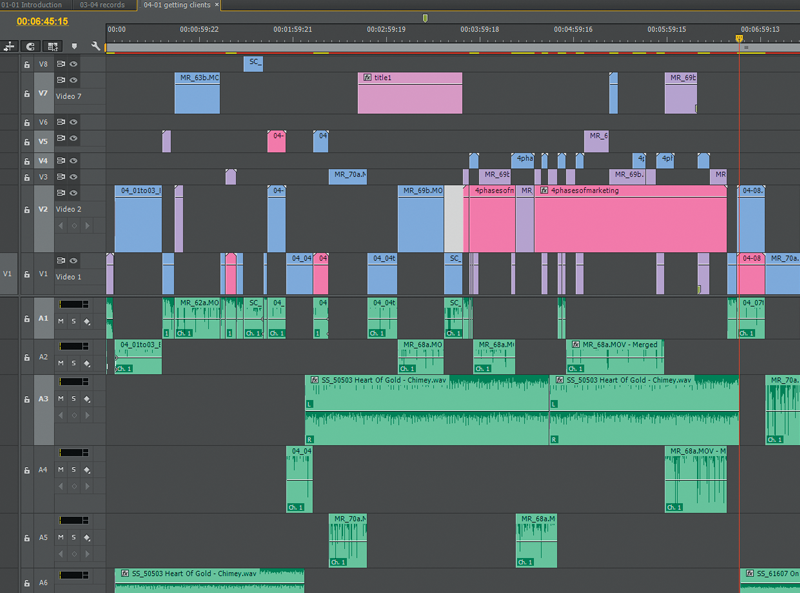
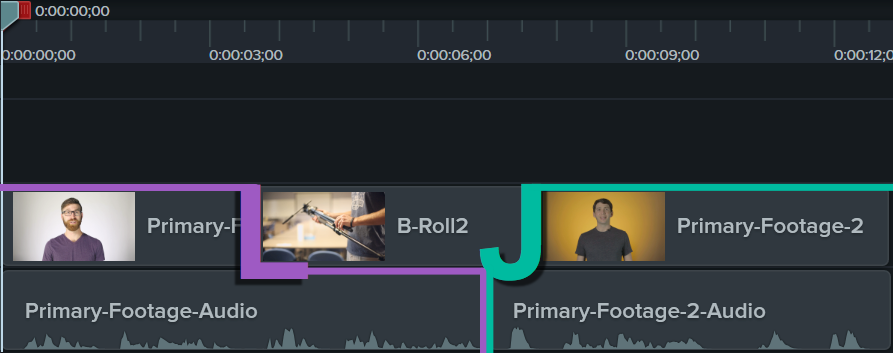

AI video generation uses credits based on duration.
Best practice:
- Split long dance reference videos into 5–6 second clips
- Generate multiple short videos instead of one long video
This saves time and credits.
Step 6: Final Editing and Export

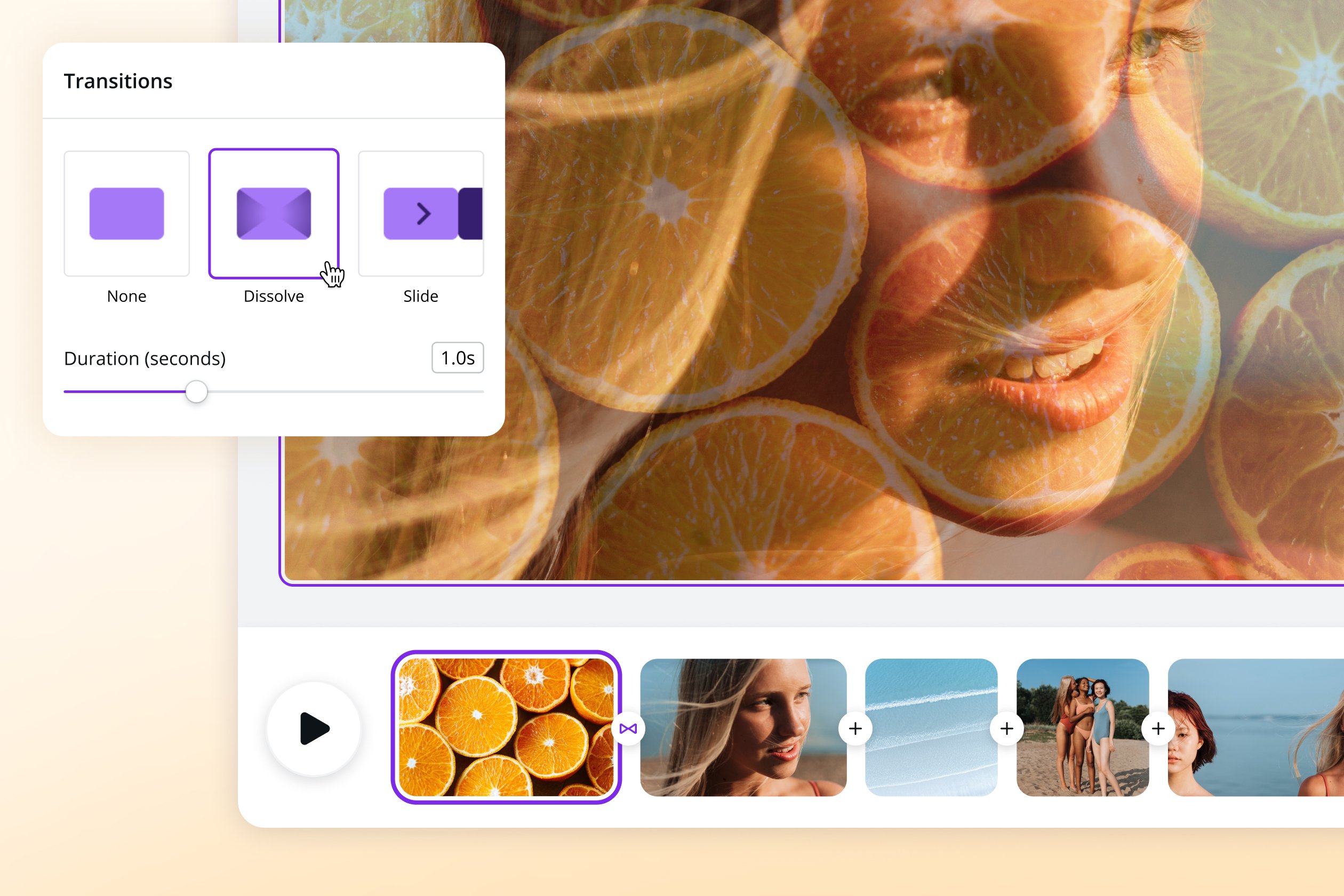
- Combine clips
- Add music
- Add smooth transitions
- Export in 9:16 format
🎉 Your baby dance AI reel is ready to post!