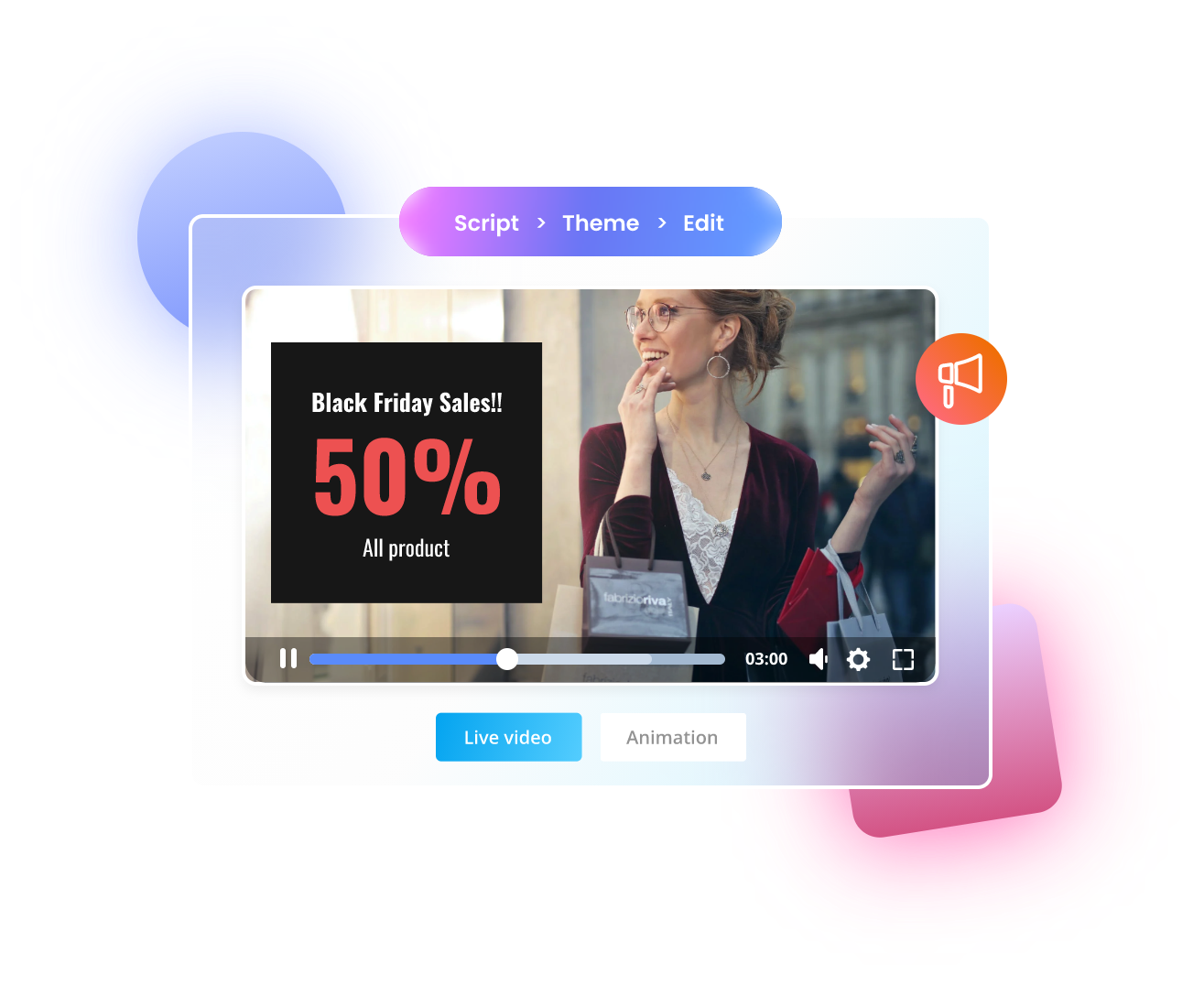
Creating professional advertisement videos was once limited to brands with big budgets, studios, and production teams. Today, AI makes it possible for anyone to create high-quality ads using just images and smart workflows.
This blog explains how you can recreate premium ads using AI for free, step by step.
🎥 Full Practical Video Guide
Watch the complete tutorial before starting:
This video demonstrates how a real, high-budget ad is compared with an AI-generated version—and the results are surprising.
🔍 Understanding the Core Concept
The main idea is simple:
Take inspiration from an existing professional ad and recreate it using AI tools.
Instead of shooting:
- Cameras
- Lights
- Actors
- Locations
You use:
- Reference screenshots
- Product images
- AI image generation
- AI motion tools
🧩 Step-by-Step AI Ad Creation Workflow
Step 1: Find a Professional Reference Ad
Choose an ad that:
- Uses multiple camera angles
- Looks premium
- Matches your product type
This will be your visual blueprint.
Step 2: Extract Key Frames
From the reference video:
- Take screenshots of important scenes
- Capture different angles and compositions
These frames will guide the AI.
Step 3: Upload Images to ChatGPT
Upload:
- One reference screenshot
- Your product image
Now give a simple instruction:
Replace the product in the reference image with my product.
Keep lighting, angle, and setup the same.
ChatGPT generates a detailed AI-ready prompt automatically.
Step 4: Generate Product Images with AI
Use the prompt in an AI image generator:
- Upload reference image
- Upload product image
- Generate final image
Result:
✔ Same professional setup
✔ Your product perfectly placed
🛠️ Clean & Enhance Images Using Canva
Screenshots may include:
- UI icons
- Blur
- Low resolution
Fix this by:
- Removing unwanted elements (Magic Eraser)
- Upscaling the image
- Adjusting framing
Now your image looks studio-shot.
🎬 Turn Images into Video Using AI Motion
Step 1: Ask ChatGPT for Motion Prompts
Upload images in sequence and ask for:
- Cinematic camera movement
- Rotation
- Slow to fast transitions
Step 2: Generate Video in Google Flow
Inside Google Flow:
- Choose Frames to Video
- Upload image
- Paste motion prompt
- Generate clip
Repeat for each scene.
✂️ Final Editing Makes the Difference
Use simple editing tricks:
- Reverse clips if motion looks odd
- Speed up or slow down scenes
- Cut unnecessary frames
This converts raw AI output into polished ad content.
🎯 Who Should Use This Method?
- Small business owners
- Freelancers
- Digital marketers
- AI content creators
- Social media advertisers
✅ Final Conclusion
AI ads are fast, affordable, and scalable.
With the right reference and workflow, you can create high-quality commercial ads without any production cost.